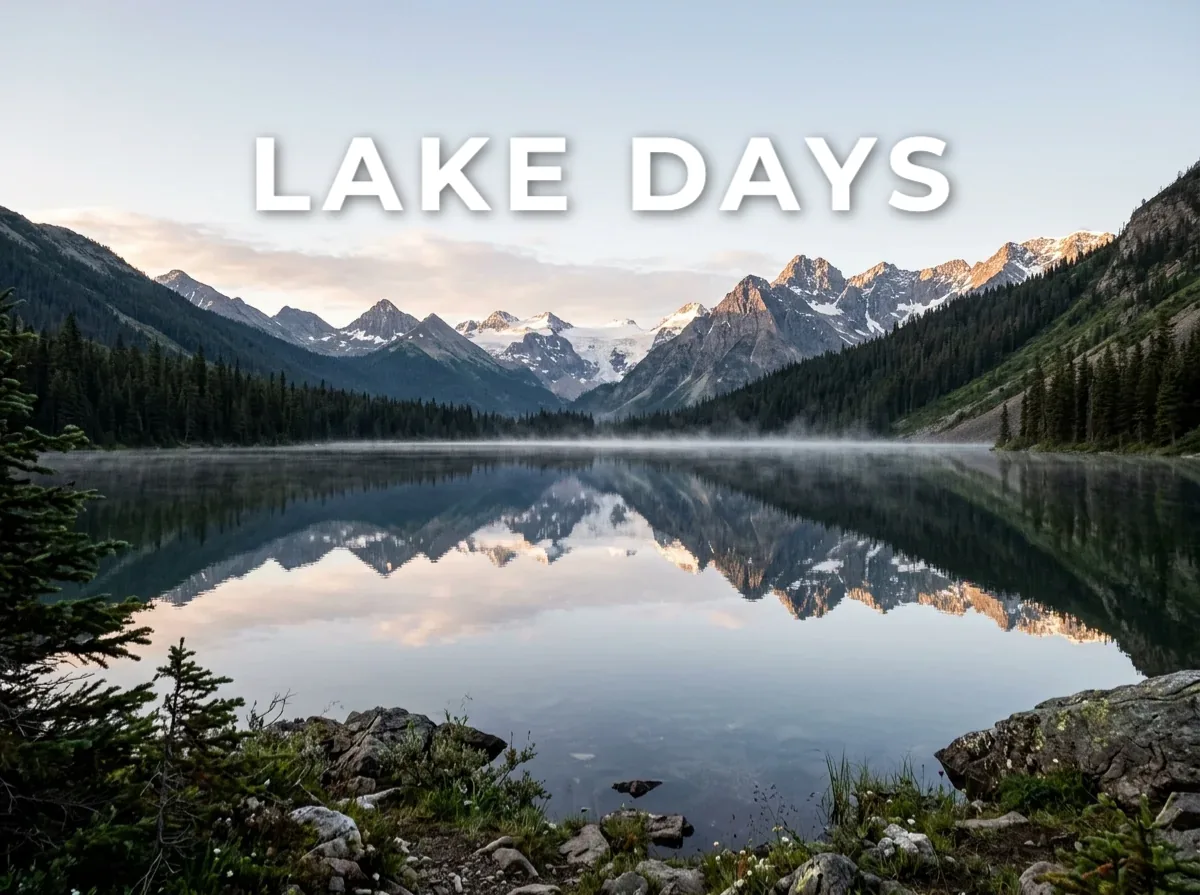
Add Text to Image Online Free
Add text to image or photo in seconds: type a title, caption or quote, pick a font, outline, shadow or curve, then download a JPG or PNG. Text in Image is free and adds no watermark.
- No watermark
- Photos stay on your device
- 30 fonts, Hindi and Tamil included
Drop a photo here, or paste it with Ctrl + V
JPG, PNG or WebP. Your photo stays in your browser: nothing is uploaded.
No photo handy? Try one of ours
How to Add Text to Image Online
- 01
Upload or paste a photo
Drop a JPG, PNG or WebP, paste a screenshot with Ctrl + V, or pick a sample. The photo opens on your screen; it is never uploaded. - 02
Type and style your text
Click Add text, type your words, then choose a font, size, colour, outline, shadow or text background. Drag to move and turn the corner handle to rotate. - 03
Download your image
Pick PNG or JPG and download. The file keeps the size of your original photo, with no watermark.
That is all it takes to add text to image online on a phone, tablet or computer. Add as many text layers as you like, duplicate one to keep the same style, or delete it and start again.

Fonts and effects
Add Text to Photo with 30 Fonts, Outline and Shadow
Plain white letters vanish on a bright sky. To add text to photo backgrounds that are busy or light, give the words an outline, a soft shadow or a solid box behind them. Six one-click looks get you there:
- Bold white: Montserrat with a soft shadow, readable on almost any picture.
- Meme: Anton with a thick black outline, the classic top-and-bottom text.
- Label: dark letters on a yellow box for prices, dates and sale tags.
- Neon: a glowing script for night shots and party photos.
- Handwritten and Outline: Caveat for notes, Bebas Neue with a stroke for posters.
Every font has an open licence. Besides display, handwriting and serif faces there are Noto fonts for Hindi, Bengali, Tamil, Telugu and Gujarati, so you can add text to image in Indian languages without broken letters.
Titles, captions and quotes
Write on Pictures: Titles, Captions and Quotes
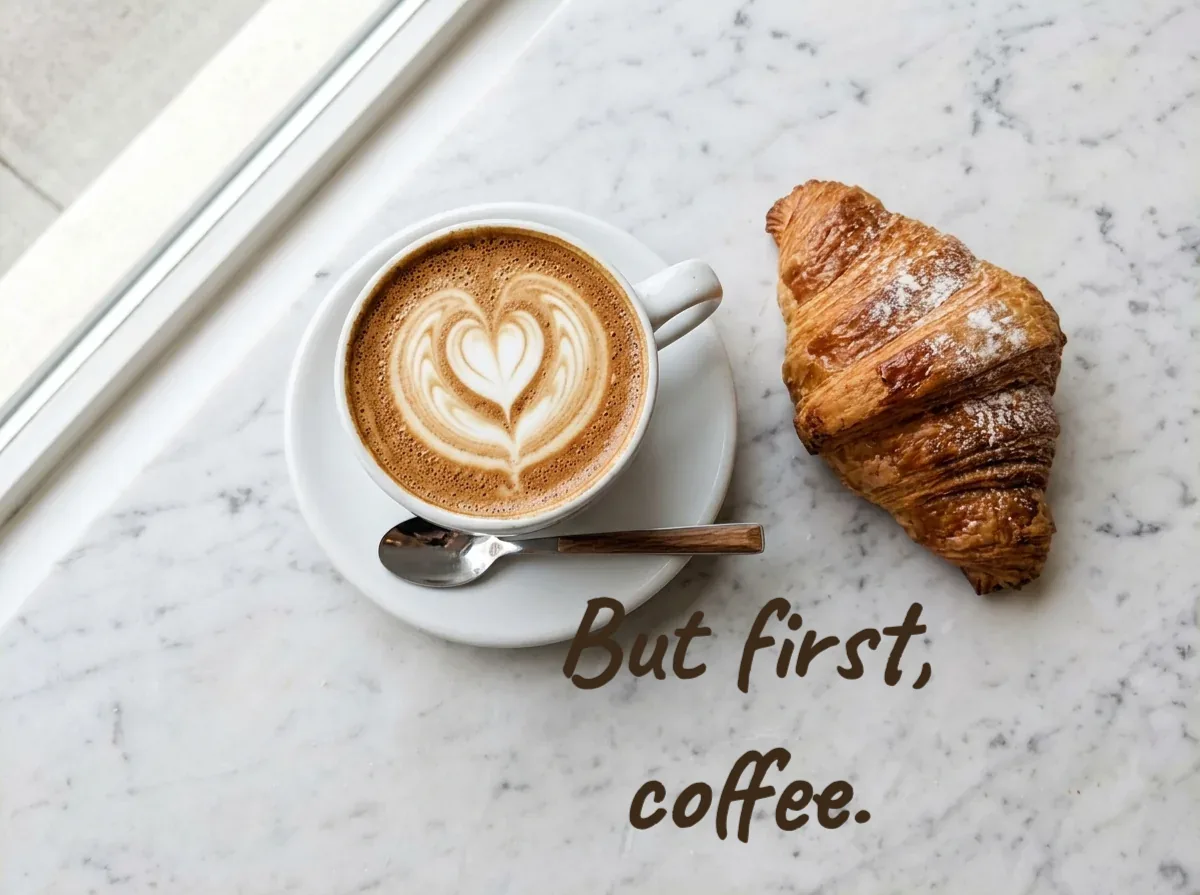
Most people add text to image for one of three reasons: a title on a travel photo, a caption that explains the moment, or a quote they want to share.
- Titles work best large and short: two to five words in a bold font.
- Captions are longer, so use a smaller size with a text background, or put them on a white bar with Add caption to photo.
- Quotes look best in a serif or handwriting font with a little extra line height and space around the words.
Curved text
Curve Text into an Arch or a Circle
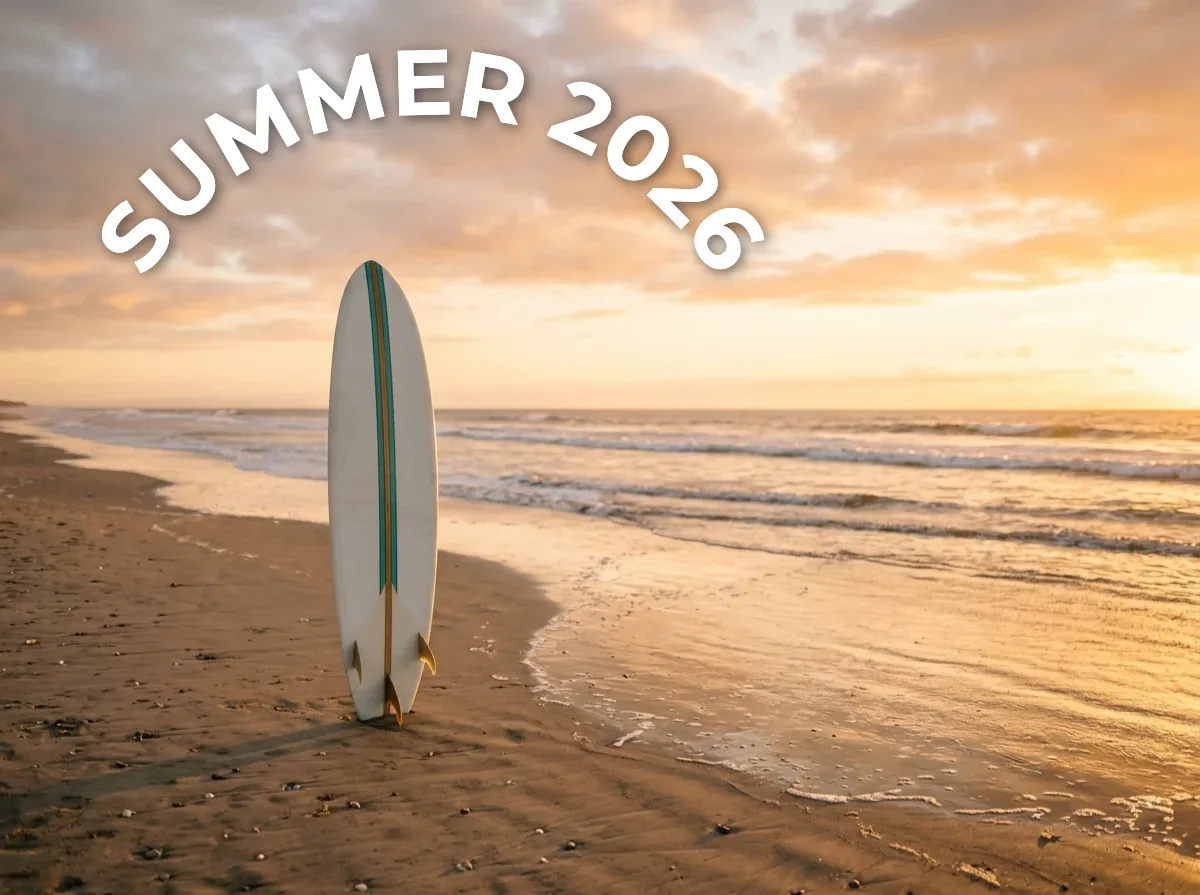
Open Spacing, curve and opacity and drag the Curve slider: positive values bend the line into an arch, negative values into a smile. It is the quickest way to add text to image badges, logos and round stickers.
For words that go all the way round, use the circle text generator. It spreads the letters evenly, can draw a ring and exports a transparent PNG.
More Ways to Put Text in Image Files
The same editor, set up for the jobs people ask for most.
 Caption
Add caption to photo
 Bubble
Speech bubble generator
 Date stamp
Add date stamp to photo
 Circle
 text generator
Add Text to JPG, PNG and WebP Images
You can add text to image files in JPG, PNG, WebP and AVIF, to the first frame of a GIF, and to screenshots pasted from the clipboard, so you can add text to photo and screenshot files alike. The download keeps the resolution of the original, up to 4096 pixels on the longest side, so the words stay sharp in print and on social media.
| Format | Best for | File size | Transparency |
|---|---|---|---|
| PNG | Sharp text, graphics, logos, transparent images | Larger | Yes |
| JPG | Photos to share in chats and on social media | Smaller | No (white fill) |
Your original file is never changed: the editor makes a new copy with the text on it, and you can download as many versions as you like.
Text in Image, Privately: Nothing Is Uploaded
Text in Image draws your words on the photo with your browser’s canvas. The picture is not sent to a server and is not stored, so you can add text to photo albums, family pictures or client work without uploading them anywhere. Only the font files load from Google Fonts. Close the tab and nothing is left behind.
Text in Image vs Canva, Photoshop and Phone Apps
| Text in Image | Canva | Photoshop | Phone photo apps | |
|---|---|---|---|---|
| Price | Free | Free plan, Pro for premium items | Subscription | Free |
| Account | Not needed | Needed | Adobe ID | Not needed |
| Watermark | None | None on free items | None | None |
| Your photo | Stays in your browser | Uploaded to Canva | Stays on your computer | Stays on the phone |
| Curved and circle text | Yes | Yes | Yes | Rarely |
| Best for | Text on one photo, fast | Designs from templates | Full retouching | Quick notes |
If you only need to add text to photo or image, a browser editor is faster than opening a design suite. For multi-page designs Canva’s templates are worth the sign-up; for retouching use Photoshop.
FAQ
How do I add text to image for free?
Open Text in Image, upload or paste your photo, click Add text and type. Style the words with the font, colour, outline and shadow controls, then download a PNG or JPG. It is free, with no sign-up and no watermark.
Can I add text to photo files on my phone?
Yes. You can add text to photo on iPhone and Android: open this page in Safari or Chrome, tap Upload a photo, type your text, drag it into place with one finger and download. The image is saved to your downloads or photo library.
Will the text look blurry after I download?
No. The download is made at the resolution of your original photo, up to 4096 pixels on the longest side, so letters stay sharp. For the crispest edges choose PNG.
Is my photo uploaded anywhere?
No. Text in Image works inside your browser: the photo is drawn on a canvas on your own device and the file is made there. Nothing is sent to or kept on our servers.
Which fonts can I use?
About 30 free fonts: bold display fonts such as Anton and Bebas Neue, handwriting such as Pacifico and Caveat, classic serif fonts, and Noto fonts for Hindi, Bengali, Tamil, Telugu and Gujarati.
Can I curve text or put it in a circle?
Yes. Drag the Curve slider to bend a line into an arch or a smile. For text that runs all the way round, use the circle text generator, which also exports transparent PNGs.
Can I use the images commercially?
Yes. The text you add is yours, and every font in the editor has an open licence that allows commercial use. You still need the rights to the photo itself.
Does Text in Image add a watermark?
No. Every download is clean, with no logo and no watermark, and you never need an account.
More free text tools
Free, no sign-up
Add text to photo now
Add text to photo in three steps: upload, type and download. The examples on this page were made with this editor.
- No watermark on downloads
- Photos stay on your device
- Works on phones, tablets and computers